Access a locked Windows device
Microsoft BitLocker on a managed device can enter recovery mode when an encrypted drive cannot be unlocked using the standard mechanism. This can happen due to a variety of reasons, for example when the system detects a possible attack, or when changing the order of boot devices.
To access a locked system through MS BitLocker recovery mode:
- Start the system with a locked OS drive.
A blue recovery screen appears.
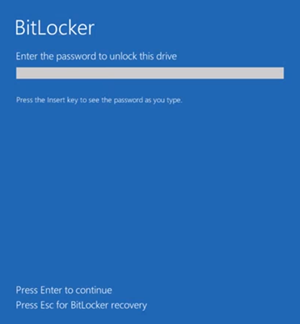
- Provide access credentials by completing one of the following steps:
- Type the password for the encrypted OS drive, as configured. Or:
- If the recovery key is enabled for this OS drive:
- Press ESC.
- On the blue recovery screen, locate and record the recovery key ID.

- On a different device, open a browser window and sign in to your Microsoft Azure portal.
- In MS Azure, navigate to the selected drive, and locate the recovery key for the given recovery key ID.
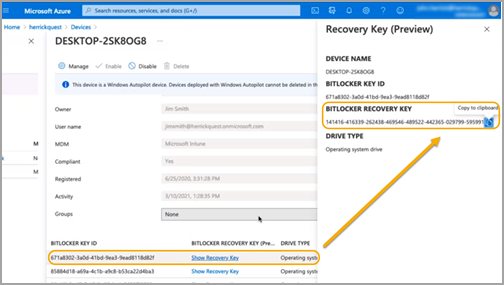
- In the blue recovery screen, type the recovery key, and press ENTER.
The system continues with startup, as usual.